Turn your group into a matchday stadium
FootyLive posts live goals and full-time cards into your group, runs a score prediction game for your members and keeps a weekly group leaderboard. Here is everything you can set up, step by step.
Running a channel instead? Read the channel guide →
Channel or group?
New to running a Telegram community? Telegram has two kinds of shared chats, and FootyLive works in both. The difference is who gets to write.
Channel
A one-way feed. Only admins post, and every post appears under the channel's name. Subscribers read and react, and can comment only if you link a discussion group. Best for sharing scores and news with a large audience.
Group THIS GUIDE
A shared chat where every member can write. People reply to each other, celebrate goals together and argue about the ref. Best for fan clubs and friends who follow the same team.
FootyLive posts match updates in both. In a channel it posts as the channel. In a group it posts into the conversation and also runs a score prediction game with a group leaderboard.
Not sure which one you have? Open the chat's info page: a channel counts subscribers, a group counts members.
What FootyLive does for your group
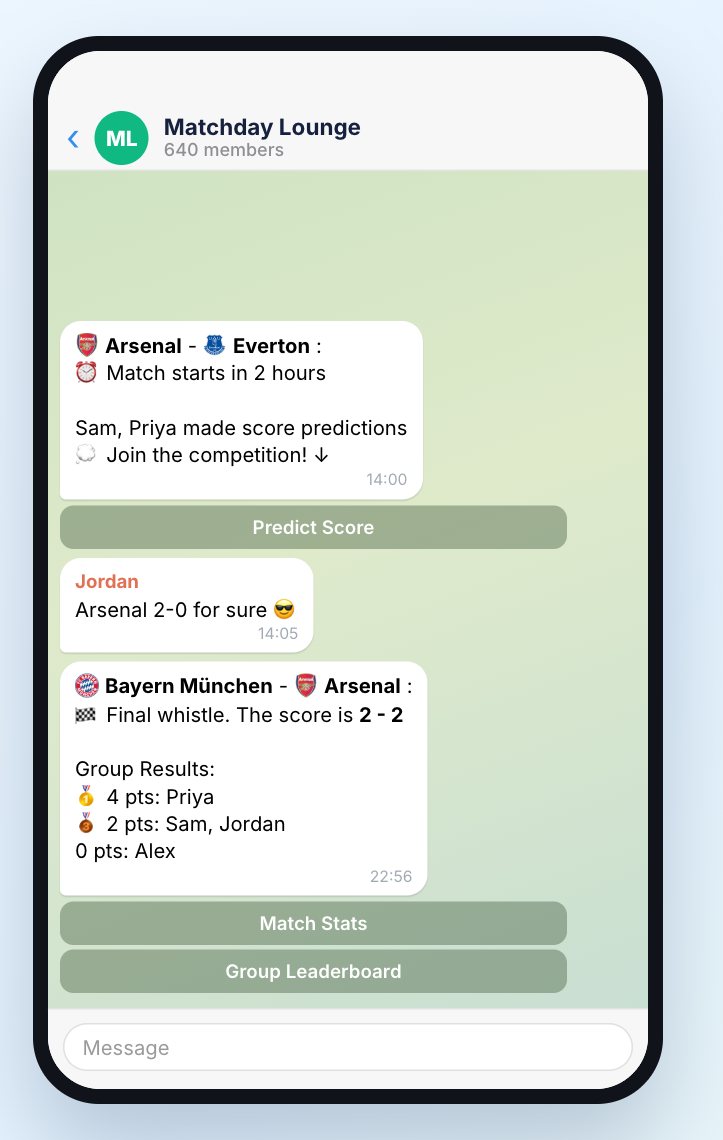
Your group already talks football on matchdays. FootyLive puts the match right into the conversation: live goals and the final whistle arrive in the chat, and before kick-off your members compete in a score prediction game with its own group leaderboard.
Fresh content, zero effort
Reminders, kick-offs, goals with scorer and assist, red cards, half-time and full-time — posted automatically, 24/7.
A match card for every result
Each full-time post comes with a shareable card: score, scorers, player of the match and key stats.
A game for your members
Every reminder has a Predict Score button. The bot shows who has already predicted, which pulls everyone else in.
Group results and leaderboard
At full time the bot posts who scored points, and the group has its own weekly leaderboard.
Everything you set up applies to this group only. Subscribers don't need to start the bot or install anything.
1 Connect the group
You set everything up in a private chat with @footyapp. You must be an admin of the group.
- Open t.me/footyapp?start=group, or open @footyapp and send
/group. - Tap Choose group chat at the bottom of the chat.
- Telegram lists the groups where you are an admin. Pick yours and confirm. Telegram adds FootyLive as an admin with the Manage Chat right.
- The bot replies “Good choice! ⚽️” and sends three buttons that open the settings for this group: Manage Team Subscriptions, Manage Match Subscriptions and Notification Settings.
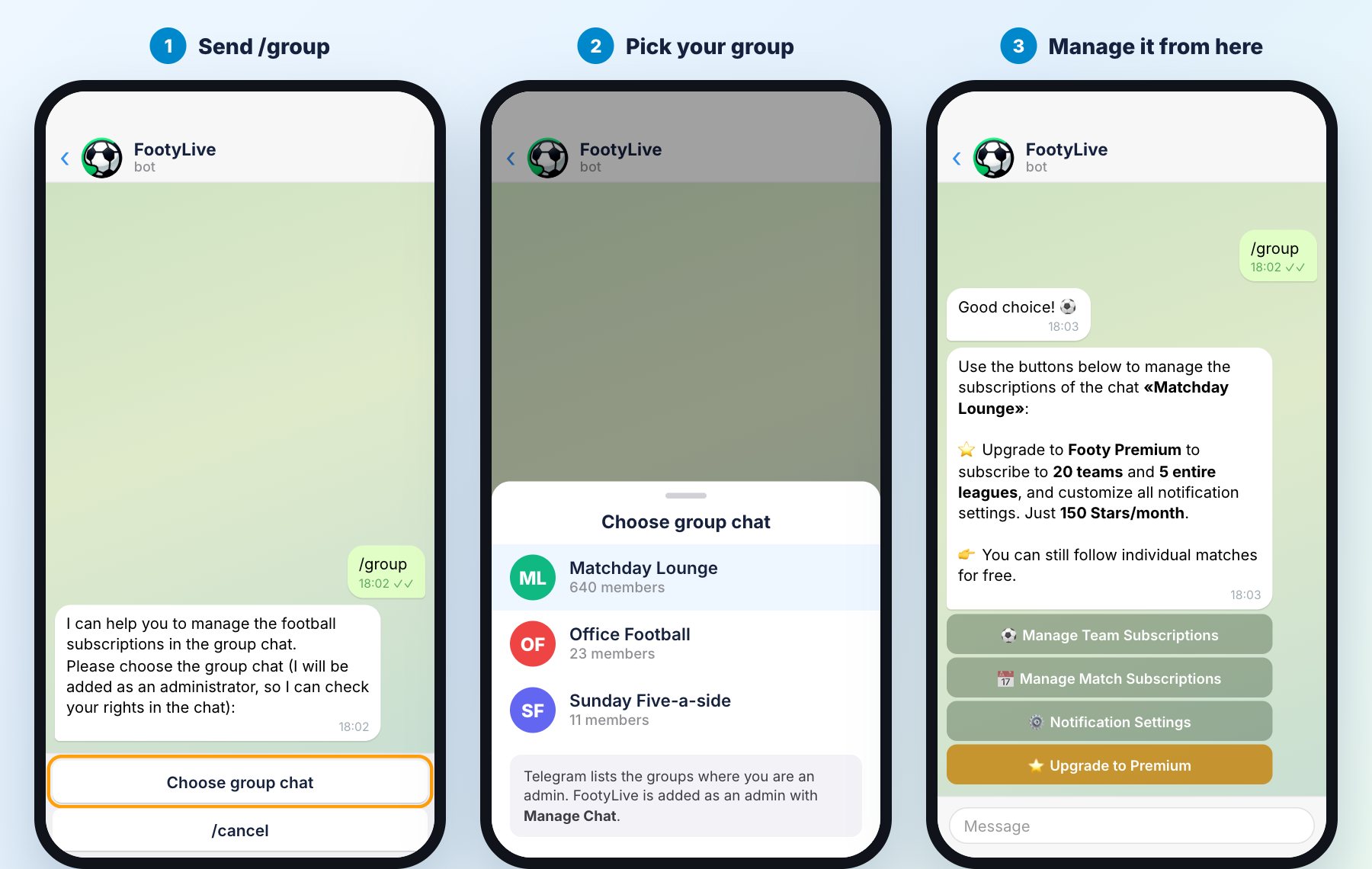
The buttons are tied to this group. The settings screen they open shows “Chat: name” at the top, so you always know which group you are editing. The buttons keep working — pin the message or come back to it any time.
Another way: add the bot from the group
You can also add the bot with the Add to group link. If you are an admin, the bot welcomes the group with Today's Matches and Choose Teams to Follow buttons. To get the full set of buttons, send /group to the bot in a private chat afterwards.
2 Pick the teams
Tap ⚽️ Manage Team Subscriptions. The FootyLive mini app opens with this group's teams.
- Type a team in Search teams and players, or browse by country and league.
- Tap Follow next to a team. It moves to My Teams at the top.
- To remove a team, tap Following next to it, or open it from My Teams and tap the bell.
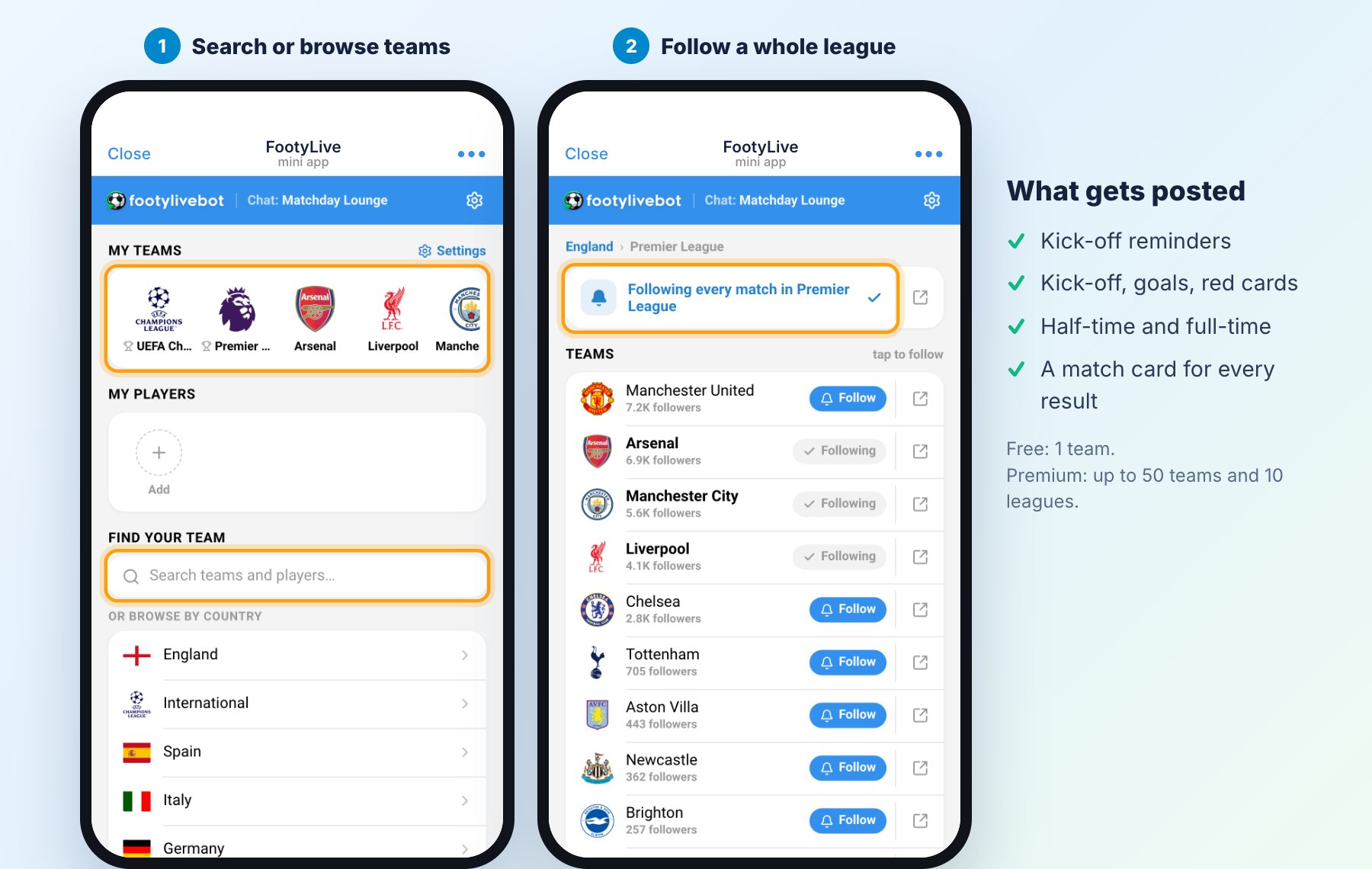
From then on, every match of these teams is posted: a reminder two hours before kick-off, kick-off, goals, red cards, half-time and the full-time card.
Free: 1 team. Footy Premium raises this to 10, 20 or 50 teams depending on your group's size — see Footy Premium.
Groups can also follow individual players (3 for free): the bot posts when they start, score or get subbed, plus their rating at full time.
3 Follow whole leagues
Following a league posts every match in it, including teams you haven't added. It's the easiest way to cover a whole competition.
- In the same screen, browse to the country and tap the league (for example England → Premier League).
- Tap the bell at the top: Follow every match in Premier League. It changes to “Following every match”.
League subscriptions are part of Footy Premium: 3, 5 or 10 leagues depending on the tier. Groups connected before 14 March 2026 keep their old free limits: 20 teams and 5 leagues.
4 Add single matches from the calendar
Want one big match without following the teams? Tap 📅 Manage Match Subscriptions. It opens the match calendar for this group.
- Pick a day in the date strip at the top.
- Tap the bell next to any match. It turns blue and the match appears under My subscriptions – Matches.
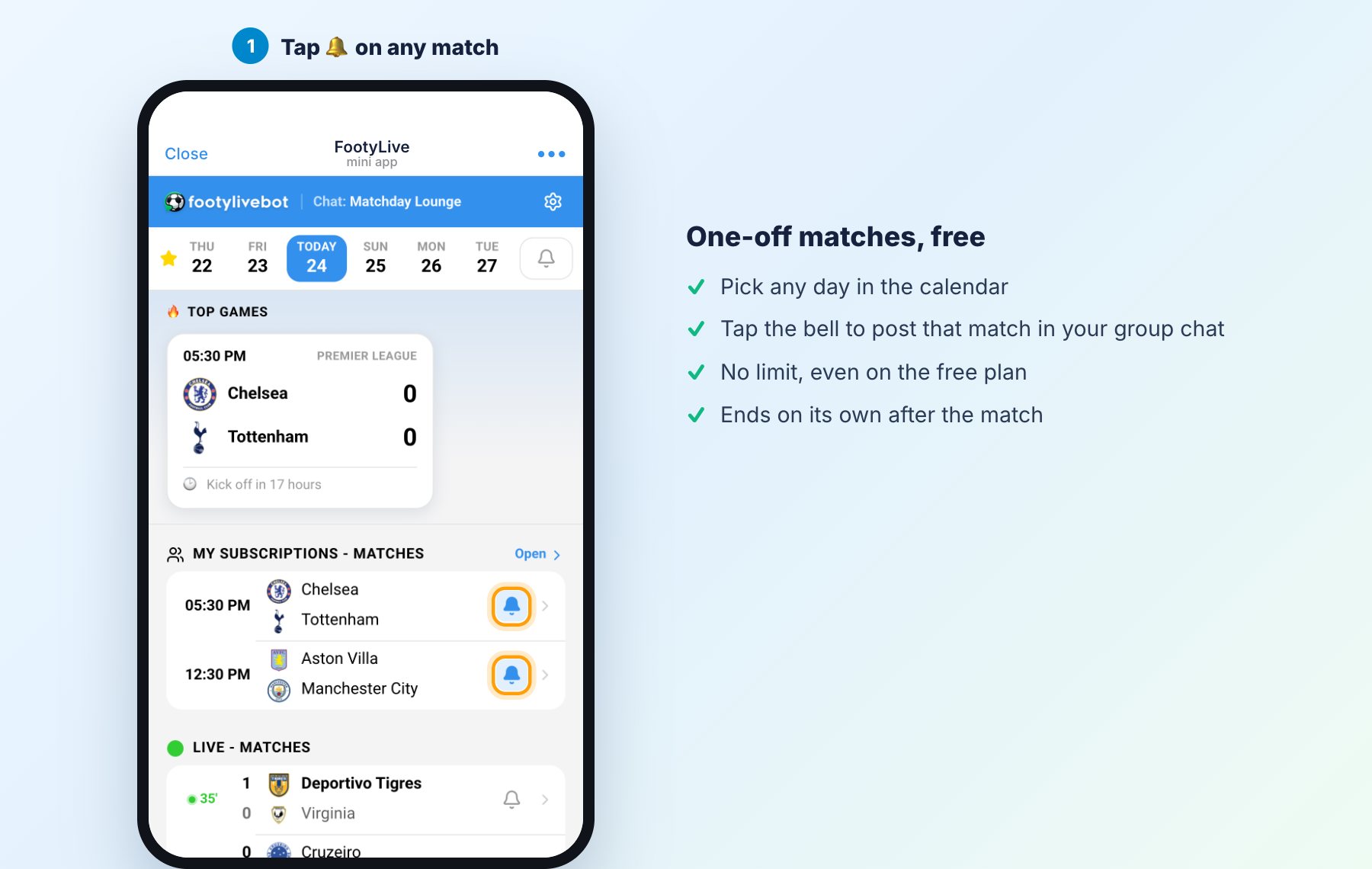
Free and unlimited. Single matches don't count towards the team limit, so the free plan can still cover every derby and final. A match subscription ends by itself a day after the match.
5 Choose what gets posted
Tap ⚙️ Notification Settings. The top card lists every type of post and whether it is on.
| Event | What gets posted | Default |
|---|---|---|
| 👟 Match start / end | Kick-off, half-time, second half, full-time card | On |
| ⚽️ Goals | Scorer, assist, new score, VAR decisions, penalties | On |
| 🟥 Red Cards | Sending-offs | On |
| ⏰ Advance reminders | “Match starts in 2 hours” | On |
| 🔝 Top games | Daily digest of the day's biggest matches | On |
| 🟨 Bookings | Yellow cards | Off |
| 🔁 Substitutions | Who comes on and off | Off |
| 📹 Video highlights | Official highlights with a Watch Now button | Off |
| 🔕 Silent mode | Posts arrive without a notification sound | Off |
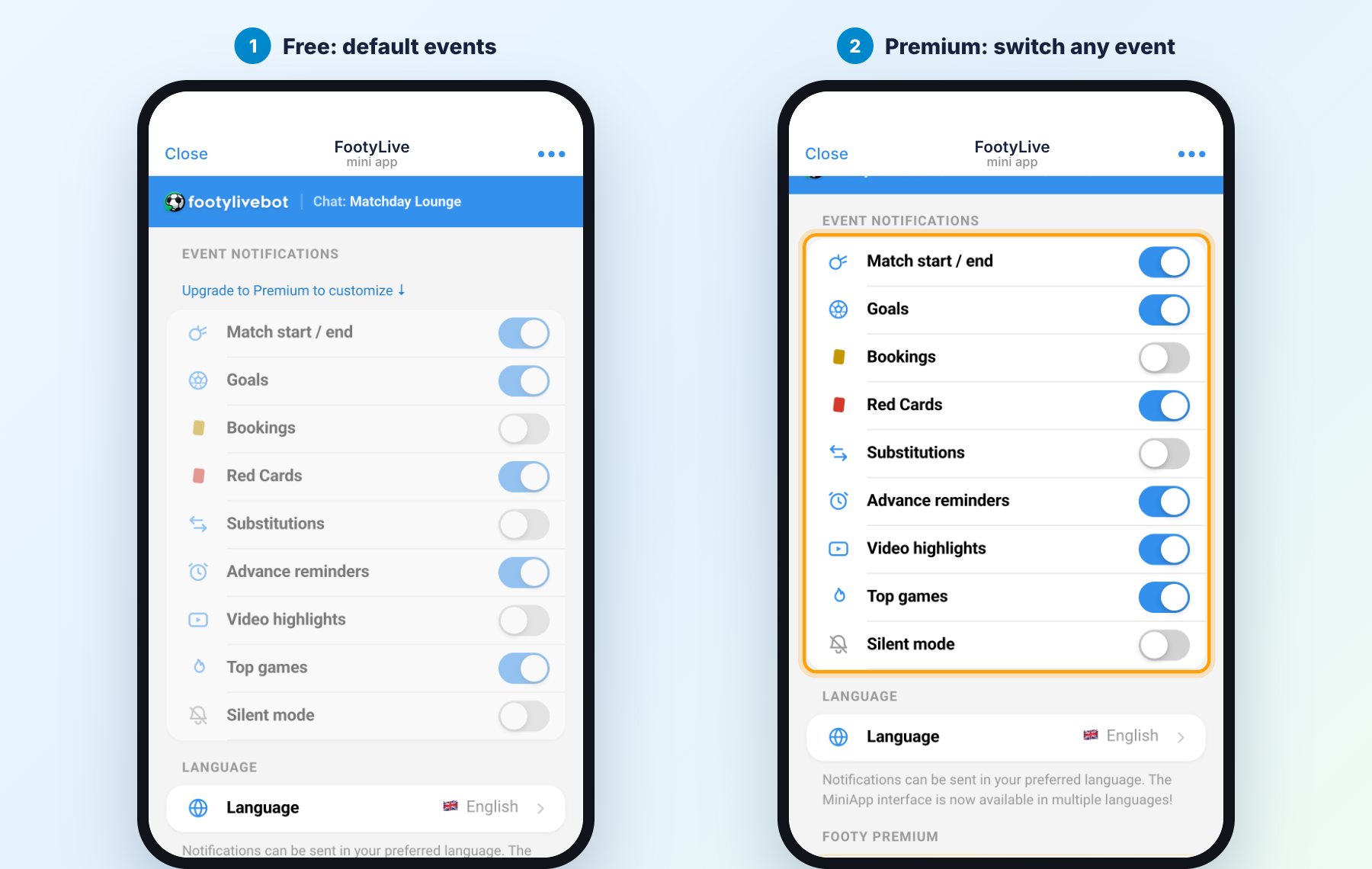
Changing events needs Footy Premium. Free groups use the defaults above — the most useful set for most audiences. With Premium you can turn on bookings, substitutions and video highlights, turn off the daily digest, or post silently. Groups connected before 14 March 2026 can change events for free.
6 Set the language
In Notification Settings, tap Language and pick one of 12: English, Deutsch, Español, Français, Italiano, Português, Русский, Türkçe, العربية, Bahasa Indonesia, 中文 or አማርኛ. All posts in this group switch to it. Changing the language is free.
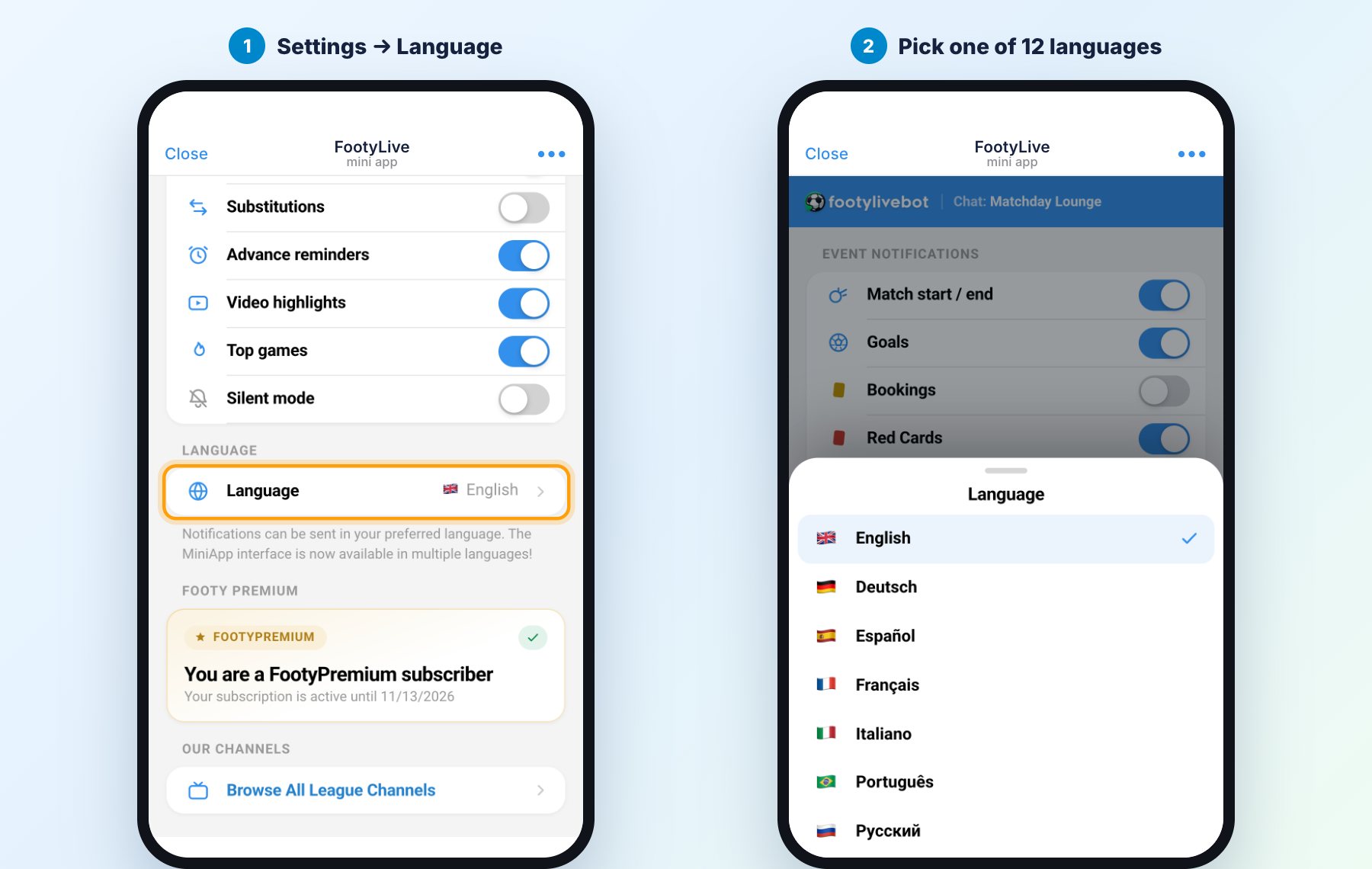
Set it explicitly. Until you choose, the language follows the Telegram language of whoever used the bot in this group last, so it can change unexpectedly.
Predictions and the group leaderboard
This part runs by itself — there is nothing to switch on.
- Before kick-off, the reminder comes with a Predict Score button. As members predict, the bot updates the message with their names — “Sam, Priya made score predictions · Join the competition!”.
- Five minutes before kick-off predictions close, so nobody can change their pick once the match is about to start.
- At full time, the final-whistle post shows the group's results: 4 points for the exact score, 3 for the right winner and goal difference, 2 for the right winner.
- The group leaderboard resets every Monday. Open it with the Group Leaderboard button or send
/leaderboard@footyappin the group.
⭐️ Footy Premium for groups
The free plan covers one team, unlimited single matches and the default events. Footy Premium is a monthly Telegram Stars subscription for this group. The tier depends on its size:
| Free | Fanup to 30 members | Crewup to 1,000 | Club1,000+ | |
|---|---|---|---|---|
| Teams | 1 | 10 | 20 | 50 |
| Whole leagues | — | 3 | 5 | 10 |
| Single matches | Unlimited | Unlimited | Unlimited | Unlimited |
| Choose events, highlights, silent mode | — | ✓ | ✓ | ✓ |
| Priority delivery on busy matchdays | — | ✓ | ✓ | ✓ |
| Price per month | Free | 50 ⭐ | 150 ⭐ | 500 ⭐ |
Priority delivery: when hundreds of chats wait for the same goal, premium groups are sent first.
How to subscribe
- Open ⚙️ Notification Settings and scroll to Footy Premium, or tap ⭐️ Upgrade to Premium in the bot's message.
- Pick the tier and tap Subscribe · N ⭐ / month.
- Pay with Telegram Stars. The bot confirms in your private chat and in the group, and the new limits apply right away.
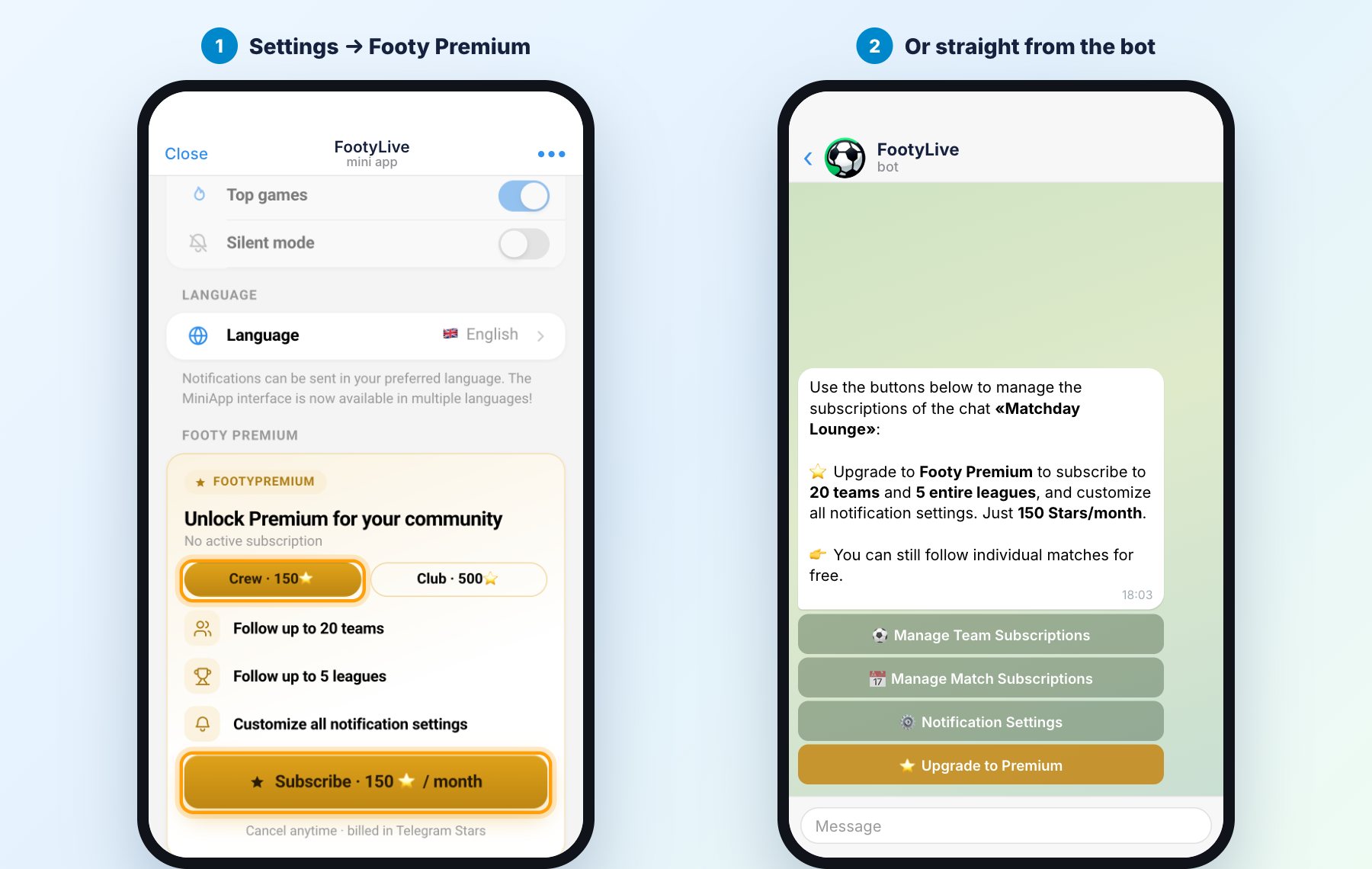
Billing. The subscription renews every 30 days and can be cancelled any time in Telegram's Stars settings. If it ends, the teams you already follow keep being posted — you just can't add new ones beyond the free limit.
Managing it later
- Lost the buttons? Send
/groupto @footyapp again and pick the same group. You get the same three buttons; your settings stay as they were. - Several groups? Repeat the steps for each one. Every group has its own teams, settings, language and Premium.
- Inside the group, admins can send
/subto manage teams or/group@footyappto get a link to the private setup chat. Commands other than /sub and /live need the @footyapp suffix in groups. - Another admin can take over. Any other admin of the group can send
/groupto the bot, pick the same group and get the same buttons. - Writing your own post? Type
@footyapp arsenalin the message field to drop in a match card with the current score.
FAQ
What rights does the bot need?
The setup adds the bot as an admin with Manage Chat. That lets it check who is an admin when someone changes the settings. It doesn't need rights to delete, pin or ban.
Who can change the settings?
Any admin of the group. When someone changes a setting, FootyLive checks with Telegram that they are an admin right now. Other members can't change anything.
How many messages will a match produce?
With the defaults, a typical match gives about 5–8 posts: the reminder, kick-off, one per goal, half-time and the full-time card. Each match gets its own messages, so posts about different games never mix.
To post less, switch off Advance reminders or Top games, or turn on Silent mode (Premium).
What is the daily “Top games” post?
Once a day the bot posts the day's biggest matches that your group doesn't already follow, with a button to add one. Switch off 🔝 Top games in Notification Settings if you don't want it.
Which time zone are kick-off times in?
Each reader sees times in their own time zone — Telegram converts them on their device.
Our group has topics. Where do the posts go?
Into the General topic. Keep General open: if the bot can't post there, it stops posting to the group.
We upgraded to a supergroup. Do we need to set it up again?
No. FootyLive moves the teams, settings and Premium to the upgraded group automatically.
How do I stop the posts?
Send /stop@footyapp in the group to remove all team, league and match subscriptions, then switch off Top games in Notification Settings to stop the daily digest too. Or just remove the bot from the group.
If you add it back later, your language and other settings are still there, but you'll need to pick the teams again.
Does it work for a group in any language or country?
Yes. FootyLive covers 5,000+ teams across the world's leagues and posts in 12 languages. A few official highlight videos are blocked in some countries by their owners; everything else works everywhere.
I paid but nothing changed, or I need help
Message us via @footylivebot_channel with the group name. We usually reply within a day.
Ready to bring the match into your group?
It takes about two minutes and the first team is free.
Connect your group